

Quick Connect
Quick Connect
Section titled “Quick Connect”Step 1: Authorize with Facebook
Section titled “Step 1: Authorize with Facebook”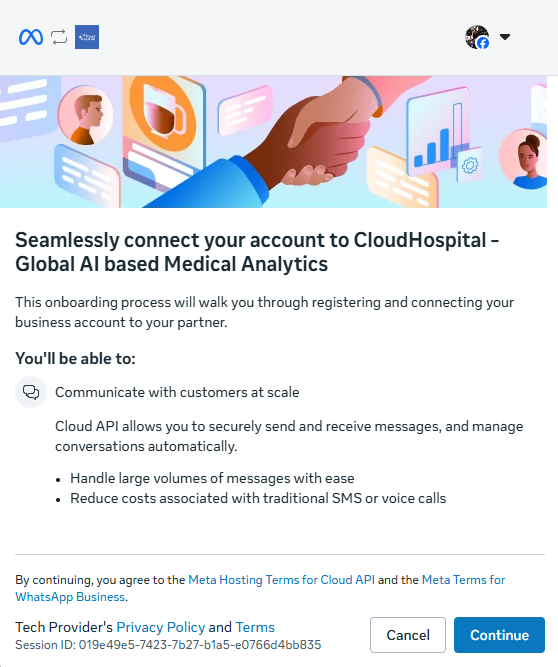
A Facebook dialog will appear. Click Continue to proceed.
What you’re authorizing:
- Access to manage your business account
- Ability to send and receive messages via SynoLink API
- Permission to manage WhatsApp conversations
Step 2: Select Business Portfolio & WhatsApp Business Account
Section titled “Step 2: Select Business Portfolio & WhatsApp Business Account”- Business Portfolio dropdown: Select your business portfolio
- If you don’t have one, you can search and select from the list
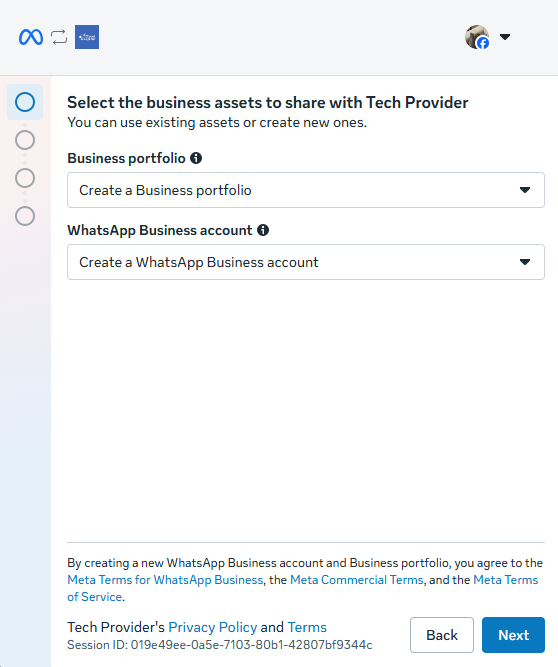
- WhatsApp Business Account dropdown: Select your WhatsApp Business account
- Options you’ll see:
- Create WhatsApp Business Account - Create a new account
- Connect WhatsApp Business App - Connect existing app
- Your existing accounts (if any)
- Click Next
Step 3: Set up Business Profile and Phone Number
Section titled “Step 3: Set up Business Profile and Phone Number”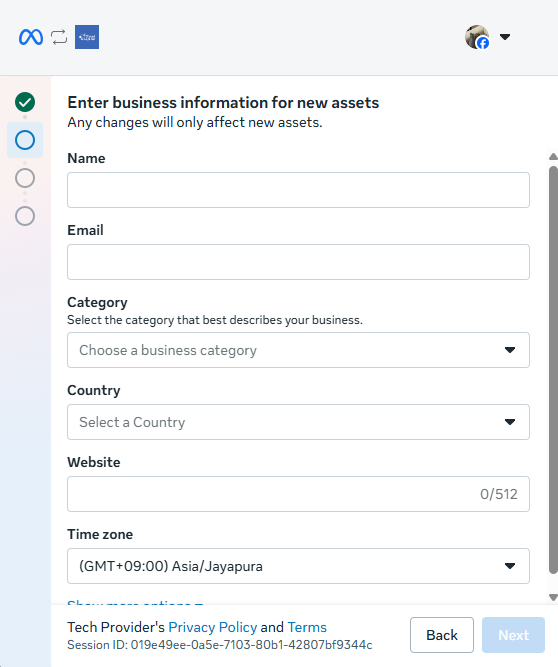
Enter your business information (name, email, category, country, website, timezone) and click Next.
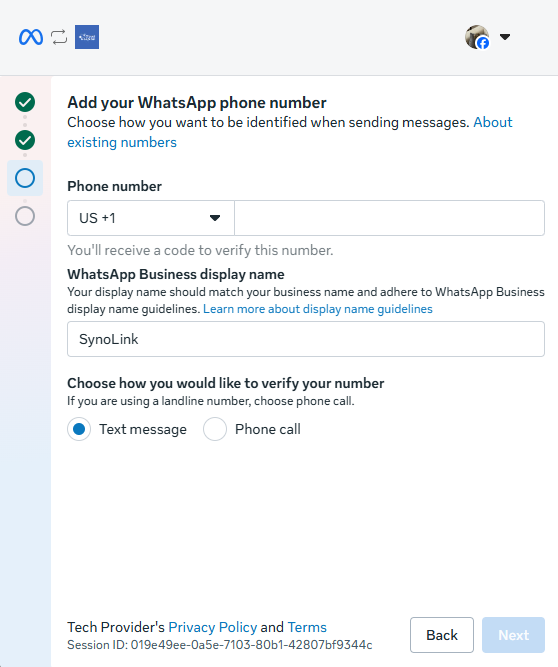
Enter your phone number, WhatsApp Business display name, and select verification method (text message or phone call). Click Next.
Step 4: Verify Phone Number
Section titled “Step 4: Verify Phone Number”Enter the 6-digit verification code sent to your phone.
Note: You have 10 minutes to enter the code. Request a new code if it expires.
Step 5: Grant Permissions
Section titled “Step 5: Grant Permissions”Review and confirm the permissions. Click Confirm.
Step 6: Complete Setup
Section titled “Step 6: Complete Setup”Wait while the account is being created. Once complete, click Done.
→ Proceed to Sync Webhook
Sync Webhook
Section titled “Sync Webhook”Final Step: Configure Webhook Connection
Section titled “Final Step: Configure Webhook Connection”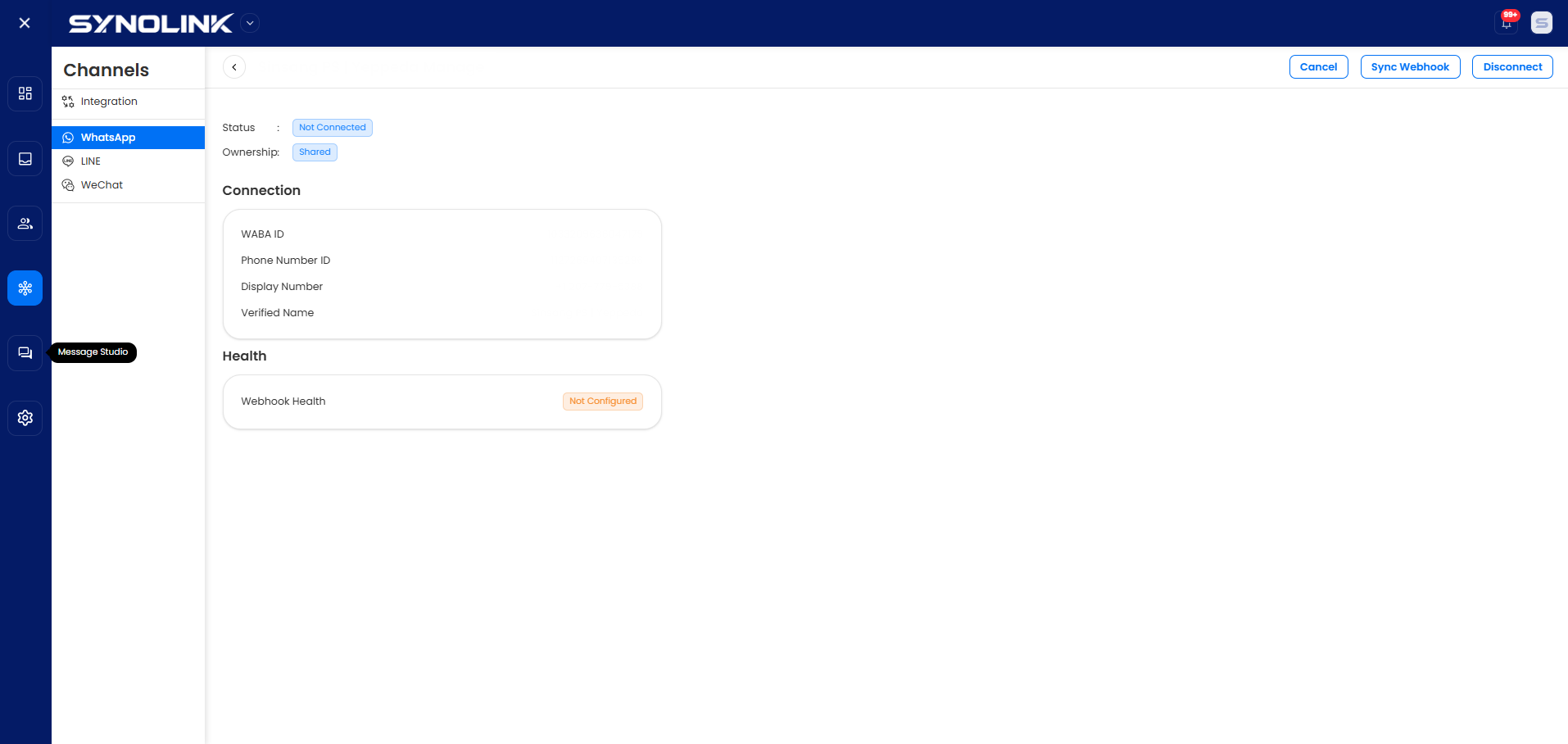
After completing Quick Connect or Advanced Setup, you’ll return to the SynoLink platform.
- Your WhatsApp account will appear in the WhatsApp List
- Click Manage button
- Click Sync Webhook button
- Wait for webhook configuration to complete
- Webhook Health status should show Configured ✓
Congratulations! Your WhatsApp Business account is now fully integrated and ready to receive messages.